

source on Google
Think you need a laptop and technical skills to build a Shopify store? Think again.
Learning how to build shopify store on your phone is one of the most accessible and easy ways to start selling online in 2026. You can literally build a shopify store from your phone right now, without any coding experience, design degree, or expensive equipment.
This complete easy guide shows you exactly how to build shopify store on phone step-by-step. From downloading the app to launching your live store, we’ll cover everything you need to know about how to build shopify store from phone successfully.
Table of Contents
- Why Build Shopify Store on Phone: Mobile First Advantage
- Step 1: How to Download Shopify App and Create Store
- Step 2: Set Up Your Brand Using Voice with Sidekick
- Step 3: How to Generate Your Store Design on Phone
- Step 4: Add Your First Product When Building on Phone
- Step 5: How to Edit Product Photos on Phone with Tinker
- Step 6: Create Essential Pages to Build Trust
- Step 7: Turn On Payments, Shipping, and Taxes
- Step 8: Organize Collections and Navigation Menus
- Step 9: Switch On Sales Channels and AI Storefronts
- Step 10: Preview, Test, and Go Live with Domain
- Expert Video: Build Shopify Store on Phone Tutorial
- FAQ
Why Build Shopify Store on Phone: Mobile First Advantage
The traditional way to build a Shopify store on a phone used to be impossible. Store owners had to sit at a computer, spend hours on setup, and learn complex tools. But that’s changed dramatically.
Today, when you build a Shopify store from your phone, you get a massive advantage that desktop builders don’t have: you see exactly what customers see. When you build a Shopify store on a phone, you’re building on the same device 70%+ of shoppers use to browse and buy.
Why Learn How to Build a Shopify Store on a Phone in 2026?
Benefits of learning how to build a Shopify store on a phone:
- No laptop required – You only need your phone to build a Shopify store from your phone
- Mobile-first perspective – When you build a Shopify store on your phone, you preview the customer experience in real-time
- AI assistance built-in – Sidekick AI helps at every step when you build a Shopify store from phone
- Faster than desktop – One screen focus makes learning how to build shopify store on phone quicker
- Start anywhere – When you build shopify store from phone, location doesn’t matter
- Professional results – You can build shopify store on phone that looks like a professional brand
The biggest reason to learn how to build shopify store on phone: you can start TODAY. You don’t have to wait for equipment, meetings, or learning expensive software. This guide will show you exactly how to build shopify store from phone in under an hour.

Step 1: How to Download Shopify App and Create Your Store
When you want to build shopify store on phone, the first step is downloading the official Shopify app. This is where everything starts when you build shopify store from phone.
How to Get Started: Download and Sign Up
To build shopify store on phone, follow these steps:
1. Download the Shopify App
First, download the Shopify app from either the Apple App Store (iOS) or Google Play Store (Android). When you build shopify store from phone, this is your entire dashboard.
2. Open and Click Get Started
After downloading, open the app and tap the “Get Started” button. This begins your journey to build shopify store on phone.
3. Choose Your Login Method
When you build shopify store from phone, you can choose to sign up with:
- Email address (recommended for how to build shopify store on phone)
- Google account
- Apple ID
- Facebook account
For this guide, we’ll use email, but any method works when you build shopify store on phone.
4. Enter Email and Create Password
Enter your email and create a strong password. Make sure to select your country from the dropdown – this is important when you build shopify store on phone for tax and shipping purposes.
5. Skip Credit Card (Optional Trial)
When you build shopify store from phone, Shopify offers a free trial. You can skip adding a credit card and start your 14-day trial immediately. This is the best way to learn how to build shopify store on phone before committing financially.
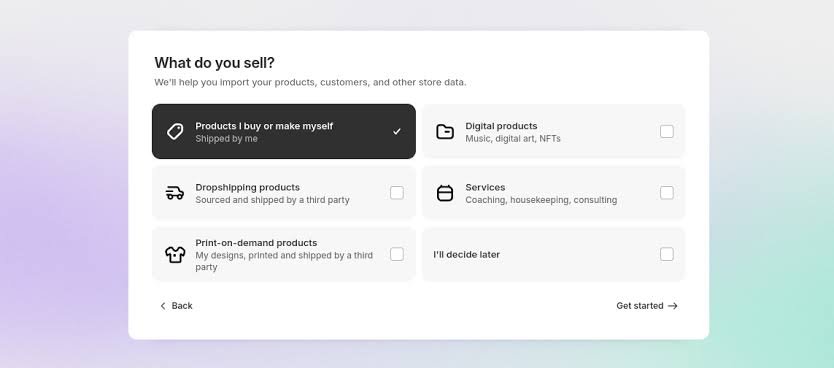
6. Customize Your Initial Setup
When you build shopify store on phone, you’ll see options to select your selling type:
- Sell online (physical or digital products)
- Sell in store (POS system)
- Drop shipping
- Sell digital products
- Move existing store
Select all that apply to you. Don’t worry if you’re unsure – when you build shopify store from phone, you can change this later.
7. Add Your Store Name (Optional)
Give your store a name, but remember when you build shopify store on phone: this can be changed anytime. If you don’t have a name yet, just continue. The important thing is to build shopify store from phone and refine later.
Pro tip for how to build shopify store on phone: Choose whether you want Shopify notifications. We recommend yes, because when you build shopify store from phone, getting alerts about orders and updates keeps you informed.
Step 2: Set Up Your Brand Using Voice with Sidekick
This is where learning how to build shopify store on phone gets exciting. Shopify’s Sidekick AI lets you set up your entire brand by talking – no typing required when you build shopify store from phone.
How to Build Your Brand Without Typing
When you build shopify store on phone, here’s how to use Sidekick voice mode:
1. Open Sidekick
When you build shopify store from phone, look for the Sidekick icon (usually a chat bubble) at the bottom right of your screen. Tap it.
2. Activate Voice Mode
To learn the fastest way how to build shopify store on phone: tap the four vertical lines to the right of the plus sign. This activates voice mode when you build shopify store from phone.
3. Grant Microphone Access
Your phone will ask permission to access your microphone. When you build shopify store on phone, tap “Allow” to continue.
4. Tell Sidekick About Your Brand
Now here’s the key to how to build shopify store on phone successfully: be specific when you describe your brand. Don’t just say “I sell candles.” Instead, when you build shopify store from phone, say something like:
“I sell hand-poured soy candles for people who want their home to feel calm and peaceful. I want my brand to feel luxurious but approachable, with warm tones and natural vibes.”
5. Save Your Brand Settings
When you build shopify store on phone, Sidekick remembers your brand voice for every description it writes later. This consistency is why being specific matters when you build shopify store from phone.
Why this matters for how to build shopify store on phone: The more you tell Sidekick about your brand when you build shopify store from phone, the better it helps you throughout the entire process. You won’t have to rewrite copy three steps later when you build shopify store from phone.
Step 3: How to Generate Your Store Design on Phone
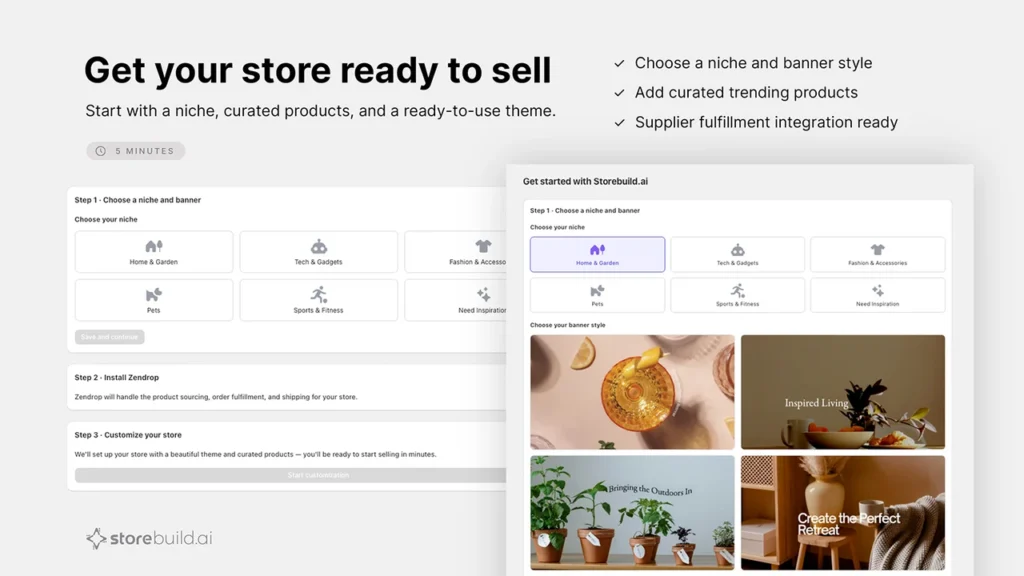
One of the biggest advantages when you learn how to build shopify store on phone is the new AI theme generator. Used to be, this step forced people to use a laptop. Not anymore when you build shopify store from phone.
Generate Professional Design in Seconds
When you build shopify store on phone, follow these steps to get your design:
1. Navigate to Design Section
When you build shopify store from phone, scroll to the “Sell Online” section and tap “Design Your Online Store.” This is where the magic happens when you build shopify store from phone.
2. Use the Theme Generator
When you build shopify store on phone, you’ll see the new mobile theme generator. Describe your store’s vibe in ONE sentence. For example:
- “Minimalist luxury candle brand with warm aesthetics”
- “Bold, colorful streetwear for young professionals”
- “Eco-friendly sustainable home goods”
The AI generates multiple design options when you build shopify store from phone.
3. Preview Your Options
When you build shopify store on phone, tap “Try Theme” to see how each design looks on your actual store. This is the advantage of learning how to build shopify store on phone – you see exactly what customers will see on mobile.
4. Customize Your Chosen Theme
After you build shopify store from phone and select a theme, tap “Edit Theme” to customize:
- Images and media
- Product photos
- Fonts and colors
- Layout and sections
5. Advanced Options
When you build shopify store on phone, tap the three dots menu to access:
- Rename theme
- Edit default content
- Edit code (for advanced customization)
- Download theme file
- Duplicate theme
- Delete theme
Pro tip for how to build shopify store on phone: Most of your customers shop on phones. So when you build shopify store from phone and preview the design, you’re seeing the actual customer experience – not a desktop version hoping it translates to mobile.
Step 4: Add Your First Product When Building on Phone
A beautiful store without products won’t make sales. When you build shopify store on phone, adding products is straightforward and can be done in minutes.
How to Add Products: Complete Process
When you build shopify store from phone, here are two ways to add your first product:
Method 1: From Homepage
When you build shopify store on phone, scroll to “Sell Online” and click “Add Your First Product.” This is the fastest way when you build shopify store from phone.
Method 2: From Products Menu
When you build shopify store from phone:
- Tap the menu icon (three horizontal lines) at bottom right
- Select “Products” (shop icon)
- Click the small plus icon at top right
- Add your product details
Essential Product Information When You Build Shopify Store on Phone:
- Product Title – Clear, benefit-focused name
- Description – Tell the story of your product
- Price – Set competitive pricing
- Category – Organize your products
- Variants – Add sizes, colors, options
- Inventory – Set available stock
- Product Images – Visual representation (we’ll cover editing next)
Writing Product Descriptions When You Build Shopify Store on Phone:
When you build shopify store from phone, you can ask Sidekick to write your description. Just tap the purple sparkle icon and provide a few keywords or features. Sidekick generates description options when you build shopify store from phone.
Important tip for how to build shopify store on phone: Generated descriptions are a good starting point, but personalize them. Your unique voice makes you stand out when you build shopify store from phone. Don’t let every product sound generic.
Step 5: How to Edit Product Photos on Phone with Tinker
Professional product photos are essential when you build shopify store on phone. But you don’t need an expensive photographer or studio. Tinker, Shopify’s creative app, lets you create professional photos from basic shots when you build shopify store from phone.
Transform Phone Photos into Professional Images
When you build shopify store on phone, here’s how to use Tinker:
1. Shoot Your Product
Take a basic photo of your product with your phone camera. It doesn’t need to be perfect when you build shopify store on phone – Tinker will enhance it.
2. Open Tinker App
When you build shopify store from phone, download Tinker from your app store. This is the secret weapon for how to build shopify store on phone with professional-looking images.
3. Choose Image Type
When you build shopify store on phone, select what type of image you want to create:
- Studio – Clean, professional background
- Editorial – Magazine-style aesthetic
- Lifestyle – Product in actual use
4. Upload or Shoot Photo
When you build shopify store from phone, either select an existing photo from your library or shoot a fresh one. Tinker works with both when you build shopify store on phone.
5. Add Creative Direction
When you build shopify store on phone, describe what you want. For example:
- “Remove the background and place this candle in a cozy bedroom setting”
- “Make this product look like a luxury brand photo”
- “Add a jungle theme background”
6. Generate and Download
Slide the arrow right to generate. When you build shopify store from phone, Tinker processes your image. Once complete, download to your camera roll when you build shopify store from phone.
Alternative: Use Sidekick in Admin
When you build shopify store on phone, you can also edit images directly in your store admin:
- Go to product page
- Open Sidekick chat
- Ask: “Remove the background” or “Place this in a jungle setting”
- Sidekick edits the image in seconds when you build shopify store from phone
- Save and upload when you build shopify store on phone
Why this matters for how to build shopify store on phone: Product photos are often the deciding factor. When customers consider buying, quality images matter. Learning how to build shopify store on phone means having professional photos without the professional budget.
Step 6: Create Essential Pages to Build Trust
Your store needs trust-building pages. When you build shopify store on phone, these pages are not optional – they’re legally required and they increase conversions significantly.
Critical Pages When You Build Shopify Store on Phone
When you build shopify store from phone, you absolutely need:
1. About Us Page
When you build shopify store on phone, customers want to know who they’re buying from. Ask Sidekick to generate an About page when you build shopify store from phone, then personalize it with your story.
2. Contact Page
When you build shopify store from phone, make it easy for customers to reach you. This reduces support requests and builds trust when you build shopify store on phone.
3. Refund/Return Policy
This is critical when you build shopify store on phone. A clear refund policy:
- Sets expectations before purchase
- Reduces customer frustration
- Builds confidence when you build shopify store from phone
- Is legally required
4. Shipping Policy
When you build shopify store from phone, explain shipping clearly. How long does shipping take? What’s the cost? International shipping available? When you build shopify store on phone, clarity matters.
5. Privacy Policy
When you build shopify store on phone, this is legally required. It explains how you handle customer data. When you build shopify store from phone, generate it with Sidekick and customize for your business.
How to Create These Pages When You Build Shopify Store on Phone:
- Open Sidekick in your admin
- Ask: “Generate an about us page”
- Sidekick creates a draft when you build shopify store from phone
- Edit and personalize
- Save and publish
Pro tip for how to build shopify store on phone: Don’t skip this step. Beginners often rush through policy pages, but these are what turn a nice-looking page into a legitimate business when you build shopify store from phone.
Step 7: Turn On Payments, Shipping, and Taxes
This is critical when you build shopify store on phone: payment setup is where most beginners fail. Without it activated, you won’t make sales when you build shopify store from phone.
Complete Payment Setup Process
When you build shopify store on phone, follow these steps for payments:
1. Enable Shopify Payments
When you build shopify store from phone:
- Go to home screen
- Click “Set Up Payments”
- Follow the prompts to complete account setup
Alternative method when you build shopify store on phone:
- Tap menu (three lines) at bottom right
- Tap settings gear icon
- Select “Payments”
- Click “Complete Account Setup”
2. Add Payment Methods
When you build shopify store from phone, you can accept:
- Credit cards (Visa, Mastercard, Amex)
- Debit cards
- Digital wallets (Apple Pay, Google Pay)
- Other payment methods by region
3. Connect Bank Account
When you build shopify store on phone, add your bank details so earnings deposit directly. This is essential when you build shopify store from phone – you need direct access to your money.
Setup Shipping When You Build Shopify Store on Phone:
When you build shopify store from phone:
- Go to Settings
- Select “Shipping and Delivery”
- Start with flat rate shipping (simplest option)
- Add your shipping cost and details
Tip for how to build shopify store on phone: Start simple with flat-rate shipping when you build shopify store from phone. You can add complex shipping rules later on desktop if needed.
Enable Taxes When You Build Shopify Store on Phone:
When you build shopify store from phone:
- Go to Settings
- Select “Taxes and Duties”
- Let Shopify handle taxes automatically
- Set your tax region
Shopify automatically calculates tax when you build shopify store on phone based on location.
Critical: Don’t skip this step when you build shopify store on phone. This is where sales happen. Without active payment methods, checkout fails when you build shopify store from phone.
Step 8: Organize Collections and Navigation Menus
Organization matters when you build shopify store on phone. Collections and menus help customers find what they want and help your store scale when you build shopify store from phone.
Create Collections When You Build Shopify Store on Phone
When you build shopify store from phone, collections group similar products:
1. Navigate to Collections
When you build shopify store on phone:
- Go to main menu
- Select Products
- Tap arrow down to expand
- Select Collections
2. Create New Collection
When you build shopify store from phone, tap the plus icon at top right and add:
- Collection title (like “Best Sellers” or “New Arrivals”)
- Collection image
- Collection description
3. Two Ways to Add Products to Your Collection When You Build Shopify Store on Phone:
Option A: Manual Adding
When you build shopify store from phone, click the plus icon and manually select each product.
Option B: Automated Collections
When you build shopify store on phone, set conditions. For example, automatically include products where:
- Price is above $50
- Category is “New Arrivals”
- Title contains specific keywords
Save Your Collection
When you build shopify store from phone, tap save and your collection is live.
Build Your Navigation Menu When You Build Shopify Store on Phone
Navigation helps customers find products when you build shopify store from phone:
1. Create a Menu
When you build shopify store on phone:
- Go to main menu
- Select Content
- Find Menus section
- Tap three dots at top right
- Select “Create Menu”
2. Add Menu Items
When you build shopify store from phone, add labels and choose what each links to:
- Product pages
- Collection pages
- Blog posts
- Homepage
- External URLs
3. Create Dropdown Menus
When you build shopify store from phone:
- Press and hold a menu item using the six-dot icon
- Drag it slightly to the right
- It becomes a submenu item when you build shopify store from phone
- Save when complete
Arrange Homepage Sections When You Build Shopify Store on Phone:
When you build shopify store from phone, make sure your most important content appears first:
- Go to main menu
- Select Online Store under Sales Channels
- Click arrow to expand
- Select Themes
- Tap “Edit Theme”
- Select a homepage section
- Tap the three-sheet icon to open full editor
- Drag sections in your desired order
- Press checkmark to save when you build shopify store from phone
Pro tip for how to build shopify store on phone: Most visitors only see your first screen. What appears first determines whether they scroll down. When you build shopify store from phone, put your best content above the fold.
Step 9: Switch On Sales Channels and AI Storefronts
This is new and powerful when you build shopify store on phone. Sales channels let you sell beyond your website when you build shopify store from phone.
Multi-Channel Selling When You Build Shopify Store on Phone
When you build shopify store from phone, activate these sales channels:
Social Commerce Channels:
- Instagram – Tag products in posts and stories when you build shopify store on phone
- TikTok – Sell directly from TikTok Shop when you build shopify store from phone
- Facebook – Shopify sync keeps inventory consistent when you build shopify store on phone
Search Channels:
- Google – Products appear in Google Shopping when you build shopify store on phone
- Pinterest – Add your products to Pinterest when you build shopify store from phone
How to Activate Sales Channels When You Build Shopify Store on Phone:
- Tap menu icon
- Select “Sales Channels”
- Tap “Add App”
- Choose the channel you want when you build shopify store from phone
- Follow setup instructions
- Your products sync automatically when you build shopify store on phone
Benefit when you build shopify store from phone: Your inventory and product information sync automatically across all channels. You don’t duplicate work when you build shopify store from phone.
New: Agentic Storefronts When You Build Shopify Store on Phone
This is the newest feature when you build shopify store on phone. Agentic Storefronts make your products discoverable through AI assistants when you build shopify store from phone.
Your products can appear in:
- ChatGPT
- Google Gemini
- Microsoft Copilot
- Other AI assistants
When you build shopify store from phone, here’s the important part: For eligible stores, Agentic Storefronts are ON by default. You don’t enable it – you manage it.
To manage when you build shopify store on phone:
- Go to menu
- Select Sales Channels
- Look for “Agentic” option
- Toggle on/off to allow Shopify to manage it when you build shopify store from phone
Why this matters for how to build shopify store on phone: This is one of the biggest updates to how people discover products. When you build shopify store from phone, people shopping through AI assistants can find your products directly.
Step 10: Preview, Test, and Go Live With Custom Domain
You’ve built your store. Now it’s time to make it public and professional when you build shopify store on phone.
Buy a Custom Domain When You Build Shopify Store on Phone
Right now, your store URL ends in myshopify.com. When you build shopify store from phone, a custom domain looks professional:
1. Navigate to Domains
When you build shopify store on phone:
- Go to menu
- Select Settings
- Tap Domains
2. Buy Your Domain
When you build shopify store from phone, tap the plus icon and type your desired domain name. Shopify shows availability and suggestions when you build shopify store on phone.
Domain price range when you build shopify store from phone:
- First year: Starting from a few dollars
- Renewal: Full price per year
- Popular extensions like .com cost more when you build shopify store from phone
3. Connect Your Domain
When you buy through Shopify while you build shopify store from phone, connection is automatic (usually within minutes).
If you already own a domain: When you build shopify store from phone, you can still connect it, but it requires extra DNS steps (covered in desktop tutorial).
Make Your Store Public When You Build Shopify Store on Phone
When you build shopify store from phone, your store is password-protected by default. To go live:
- Go to menu
- Select Online Store
- Toggle OFF “Password Protection”
- Choose your plan (Basic, Shopify, Advanced)
- Complete setup
Your store is now live when you build shopify store from phone.
Preview Before Going Live When You Build Shopify Store on Phone
Test everything when you build shopify store from phone:
- Click through products
- Add items to cart
- Complete test checkout
- Check mobile view
- Verify all links work when you build shopify store from phone
Important tip for how to build shopify store on phone: Don’t wait for perfect. Every successful store is tweaked 100 times after launch when you build shopify store from phone. The important thing is to start.
Expert Video: How to Build Shopify Store on Your Phone – Complete Tutorial from Learn with Shopify
Watch this official Shopify tutorial showing exactly how to build shopify store on phone from start to finish. This comprehensive guide covers every step when you build shopify store from phone:
Video Credit: Learn with Shopify
Channel: https://www.youtube.com/@learnwithshopify
Video Link: https://www.youtube.com/watch?v=vdUtt0qZ4W4&t=31s
License: Standard YouTube License
This official Shopify tutorial demonstrates proven step-by-step strategies on how to build shopify store on phone from app download to going live with a custom domain.
FAQ: How to Build Shopify Store on Phone
Q: Can I really build a complete Shopify store on just my phone?
A: Yes! You can complete every step of how to build shopify store on phone from setup to launch. The Shopify mobile app now includes all tools needed when you build shopify store from phone.
Q: Do I need a laptop at all when I build shopify store on phone?
A: No. When you build shopify store from phone, everything can be done on mobile. You can add desktop setup later when you build shopify store from phone, but it’s not required to start.
Q: How long does it take to build shopify store on phone?
A: Basic setup when you build shopify store from phone takes 1-2 hours. From downloading the app to going live when you build shopify store from phone is totally doable in one afternoon.
Q: Is the quality the same when you build shopify store on phone versus desktop?
A: Yes. When you build shopify store from phone, you get the same professional results. You actually see the mobile customer experience when you build shopify store on phone, which is an advantage.
Q: Will customers be able to tell I built this on phone?
A: No. When you build shopify store on phone using the tools we covered, your store looks professional. Customers won’t know how you built shopify store from phone.
Q: Can I edit my store later on desktop after I build shopify store on phone?
A: Absolutely. When you build shopify store from phone, you can switch to desktop anytime to access advanced features. Your progress saves when you build shopify store from phone.
Q: What if I get stuck when learning how to build shopify store on phone?
A: Sidekick AI helps at every step when you build shopify store from phone. Plus Shopify has support resources. Learning how to build shopify store on phone is designed to be simple.
Q: Is there a cost to build shopify store on phone?
A: Shopify offers a free trial when you build a Shopify store from your phone. After the trial, plans start at $39/month. Domain registration costs extra when you build a Shopify store from a phone.
Related Guides to Optimize Your Shopify Success
After you learn how to build a Shopify store on your phone, take your business further with these guides:
- How to Increase Sales on Shopify – Strategies to boost revenue after launch
- Shopify Email Marketing Strategies – Build customer relationships
- How to Optimize Shopify Product Pages for Sales – Convert visitors to buyers
- How Shopify Store Speed Impacts Sales – Technical optimization
Ready to Launch Your Shopify Store From Your Phone?
Now you know exactly how to build a Shopify store on your phone. The hardest part is getting started.
Get Your Free Shopify Store Audit
CrestVox Studio helps you build shopify store on your phone and then optimize it for maximum sales. We’ll show you how to take your phone-built store and scale it to six figures.